
Home Assistant in VirtualBox on a Dell Optiplex (My Setup + Must-Have Add-ons)
I’ve been running Home Assistant for years, and one of the most common questions I see is: “What’s the best way to install it?”
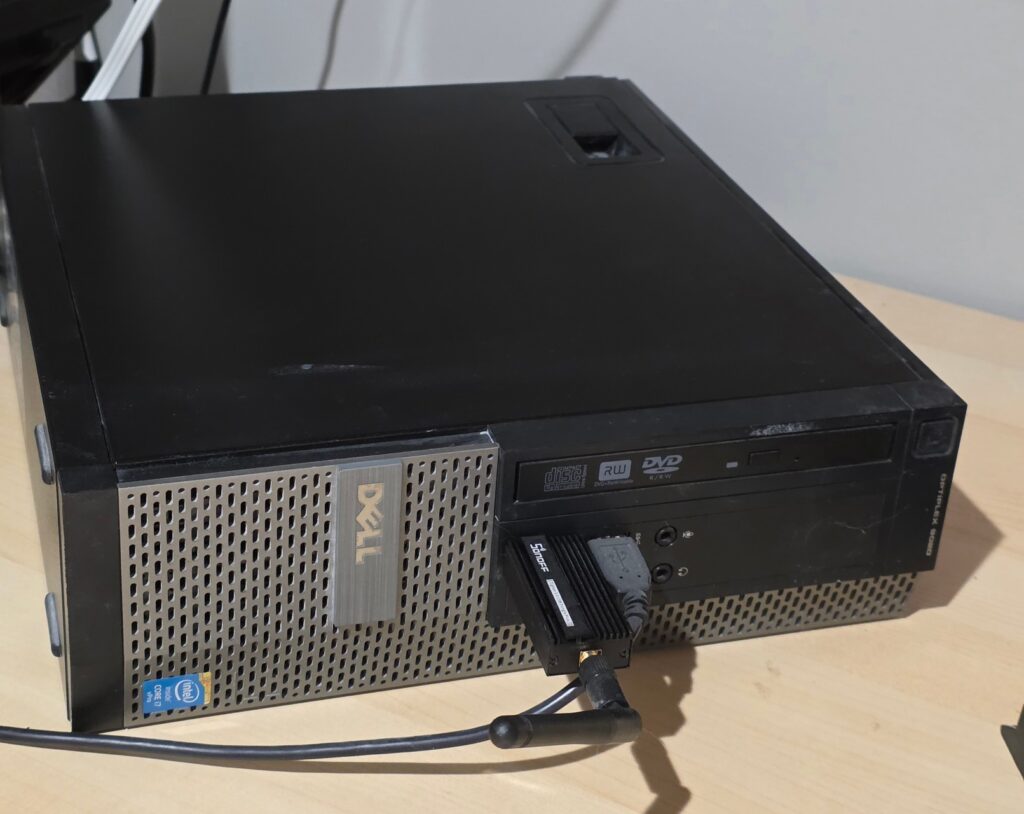
In this post, I’m showing how I run Home Assistant inside VirtualBox on an old Dell Optiplex Small Form Factor PC. I chose this route because that same machine was already dedicated to running Blue Iris for my security cameras. Instead of buying another box just for home automation, it made more sense to use what I already had.
TL;DR
Why I Run Home Assistant in a Virtual Machine
There’s a lot of debate online about whether Home Assistant performs well in a virtual machine. Personally, I haven’t seen any issues. I’ve been running this same Home Assistant VM for years, and I’m still adding devices and integrations without performance problems.
Home Assistant is also a perfect topic for this site because it sits right in the middle of my two main categories: Home DIY and Electronics DIY.
What Home Assistant Is (and Why It’s Worth Using)
If you’re not familiar with it, Home Assistant is an open-source home automation platform that runs locally on your home network. It supports thousands of devices and makes nearly any automation possible.
Think motion-triggered lighting, geofencing for home/away mode, energy monitoring, custom dashboards, and more. If you can think of it, there’s usually a way to make it happen.
Home Assistant Can Be Simple… or as Deep as You Want
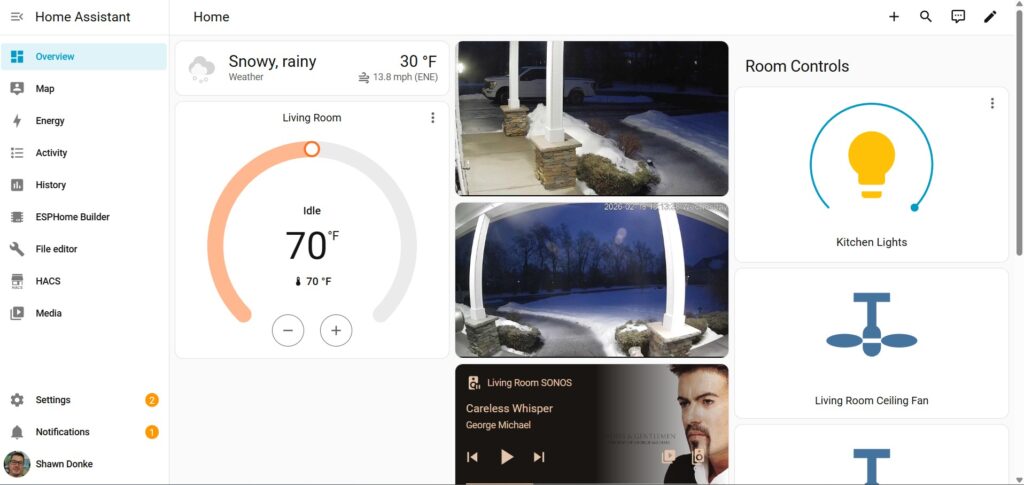
One of the best things about Home Assistant is that it’s completely based on what you put into it. You can keep it simple, like a few smart lights and motion sensors, or you can build out advanced automations, dashboards, and whole-home monitoring.
That’s what makes it a great platform for beginners and for DIYers who like to tinker.
The Home Assistant mobile app also makes everything more convenient. Once it’s set up, you can control what you need, when you need to, without bouncing between a bunch of different manufacturer apps.
Want the Easy Route? Home Assistant Green
If you want something plug-and-play (or you just don’t want to deal with VirtualBox and VMs), Home Assistant sells a simple prebuilt option called Home Assistant Green.
Check current price for Home Assistant Green on Amazon
It’s a great option if you’re brand new to Home Assistant, or if you just want something dedicated that you can set up and forget.
Device Protocols: Zigbee, Z-Wave, and Wi-Fi
One thing that can be confusing when you first start with Home Assistant is that smart devices don’t all communicate the same way. There are a few common protocols you’ll run into, including Zigbee, Z-Wave, and Wi-Fi.
Most of my devices are either Wi-Fi or Zigbee.
Why I Use Zigbee (and What It Is)
Zigbee is a wireless communication protocol designed primarily for IoT (Internet of Things) applications. It allows smart devices to connect and communicate with each other using a mesh network.
The mesh structure is one of the biggest benefits: Zigbee devices can pass data through one another, which extends the network’s range and improves reliability, especially compared to relying on one device talking directly back to your router.
I originally started using Zigbee devices because I didn’t want to overload my wireless network with dozens of Wi-Fi devices. Zigbee keeps that traffic separate and has been very reliable for me.
If you’re building a Zigbee network, I highly recommend having a few always-powered Zigbee devices (like smart plugs) to strengthen the mesh. Battery devices usually don’t act as repeaters, so a couple powered devices can make a big difference in range and stability.
ZHA (Zigbee Home Automation)
For Zigbee, I use ZHA (Zigbee Home Automation). ZHA is built into Home Assistant, and it’s been easy to work with.
Once ZHA is enabled, Zigbee devices show up directly in Home Assistant and are usually easy to pair and discover, as long as you have a compatible Zigbee adapter.
In my setup, I’m using a Sonoff Zigbee USB adapter, and you can actually see it plugged into the Dell Optiplex in the photo near the top of this post.
There are other Zigbee options out there (like Zigbee2MQTT), but I’ve stuck with ZHA because it’s built-in, straightforward, and just works.
How Wi-Fi Devices Work in Home Assistant
Wi-Fi devices are usually the simplest to get started with, since you don’t need an additional hub or USB adapter like you do with Zigbee.
In most cases, Wi-Fi devices pull into Home Assistant through the integration they’re associated with. For example, my Kasa switches pull in through the TP-Link Smart Home integration.
Home Assistant also scans your network for compatible smart devices. A lot of the time, smart devices will show up automatically under Discovered devices if they can integrate out of the box.
Once they’re added, they behave just like any other device in Home Assistant, meaning you can use them in dashboards, automations, scenes, and routines the same way you would with Zigbee or Z-Wave devices.
My “Required” Apps
Once your Home Assistant instance is running, you can add on countless devices through integrations and start building automations. But there are a couple integrations I consider requirements, no matter how you install Home Assistant.
1) Google Drive Backup (Required)
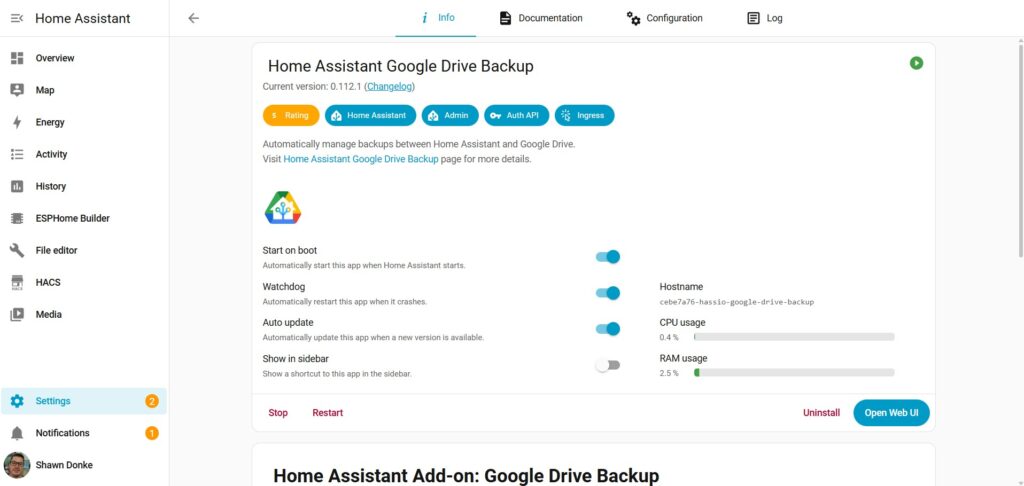
The first one is Google Drive Backup.
This makes sure your Home Assistant instance is being backed up regularly. In my opinion, having current backups is one of the best things you can do to protect your setup because if your system ever fails, restoring your Home Assistant configuration becomes a much easier task.
Even better, it runs quietly in the background based on the schedule and settings you configure.
2) Remote Access (Required)
The second requirement (in my opinion) is being able to access Home Assistant remotely.
Home Assistant isn’t very useful if it only works while you’re connected to your home Wi-Fi. Whether you’re checking sensors, controlling lights, viewing dashboards, or just making sure everything looks normal while you’re away, remote access makes a huge difference.
There are a few ways to do this, and the best option depends on how hands-on you want to be.
Option 1: Nabu Casa (Simple + Built for Home Assistant)
Home Assistant has its own subscription-based cloud service called Nabu Casa, and it’s a popular choice for a reason. It’s built specifically for Home Assistant, it’s easy to set up, and it avoids a lot of the networking headaches that come with other methods.
Option 2: VPN Access (More DIY + More Control)
The other option is running a VPN so you can connect directly to your home network. This gives you more control, and it can be a very secure way to access Home Assistant without exposing anything to the internet.
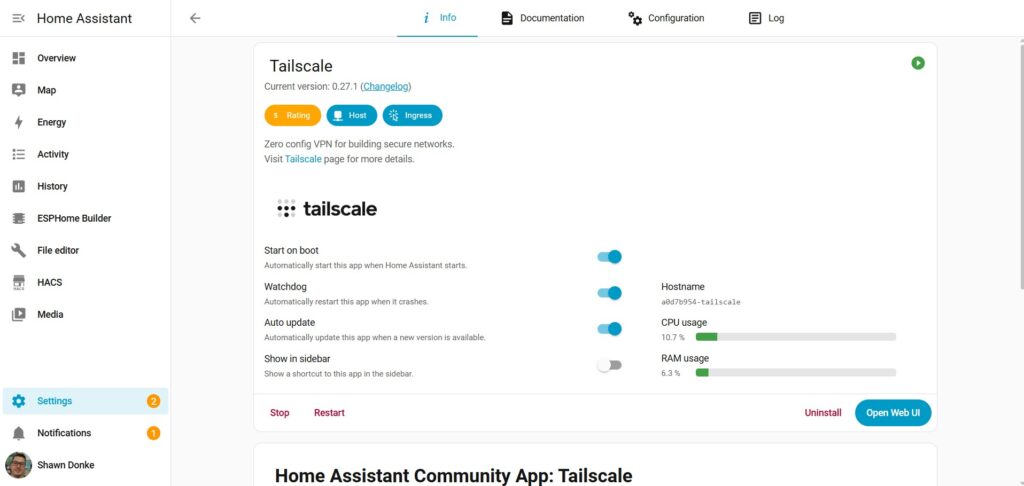
In my case, I use Tailscale.
I was already running it on multiple devices around my home network, and there’s a Home Assistant add-on that makes integration simple. Once it’s set up, I can securely access my Home Assistant instance from anywhere without opening ports on my router.
You do need to create a Tailscale account in order to set this up.
3) HACS (Required)
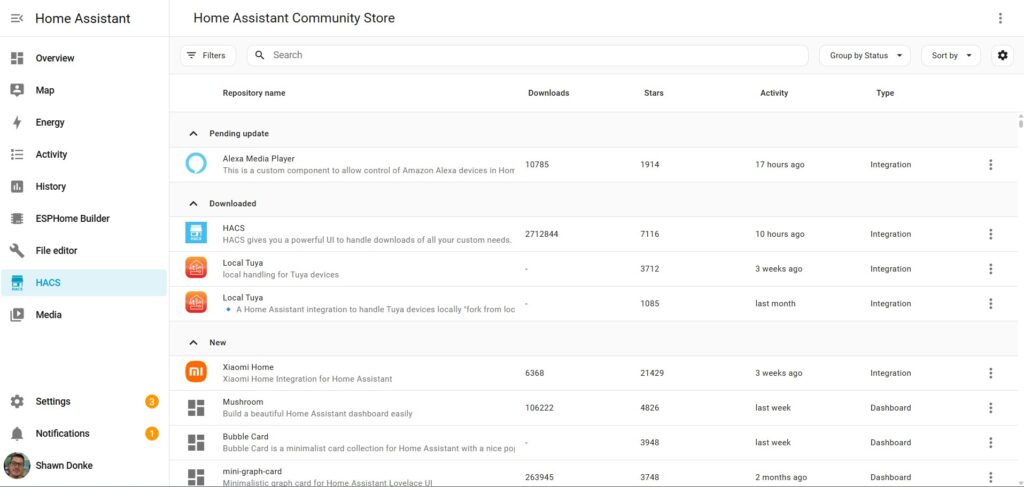
The next integration I consider a must-have is HACS, which stands for Home Assistant Community Store.
HACS isn’t included by default, but it gives you access to a huge library of community-built integrations, themes, and custom components that you won’t find in the standard Home Assistant integration. You can literally go down a rabbit hole with all the possibilities available in HACS!
In my opinion, HACS is what takes Home Assistant from really good to unlimited options. If you ever run into a device or service that isn’t supported out of the box, there’s a good chance someone has already built a HACS integration for it.
Once it’s installed, it also makes it easy to manage updates for those community add-ons, so you’re not manually downloading files or editing folders every time something changes.
Example Automation-What Home Assistant Is Really About
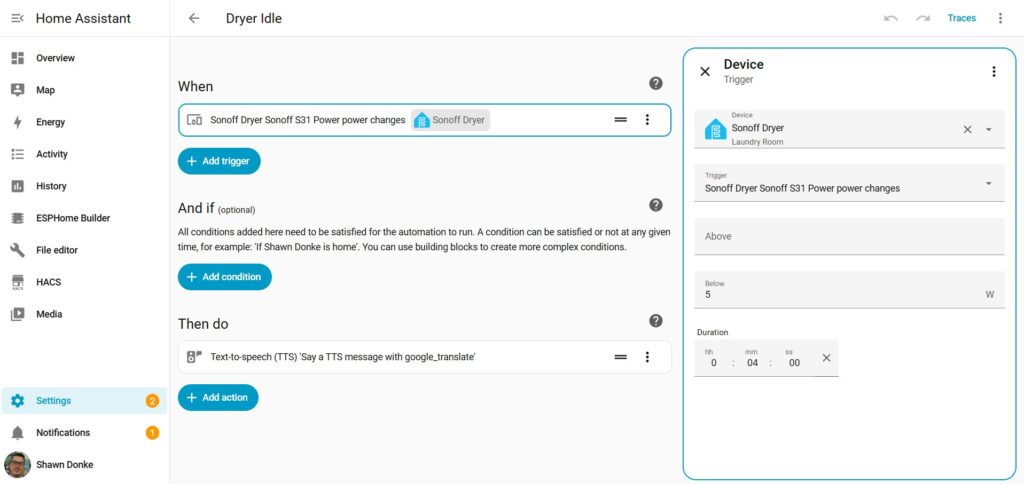
Once you have Home Assistant running and a few integrations added, you can start building automations that connect everything together.
Value and Final Verdict
Running Home Assistant on an old Dell Optiplex inside VirtualBox is one of the best ways to get a powerful, reliable smart home hub without buying dedicated hardware. If you already have a PC running 24/7 for something like Blue Iris, this setup is a no-brainer.
Home Assistant can be as simple or as advanced as you want, but starting with the right foundation makes everything easier long-term. For me, that foundation includes Zigbee with ZHA, Wi-Fi integrations, HACS, Google Drive Backup, and secure remote access using either Nabu Casa or a VPN like Tailscale.
Bench & Build Verdict:
A stable, flexible Home Assistant setup that’s easy to expand, easy to maintain, and perfect for DIYers who want the option to think outside the box and not limited to prebuilt home automation.